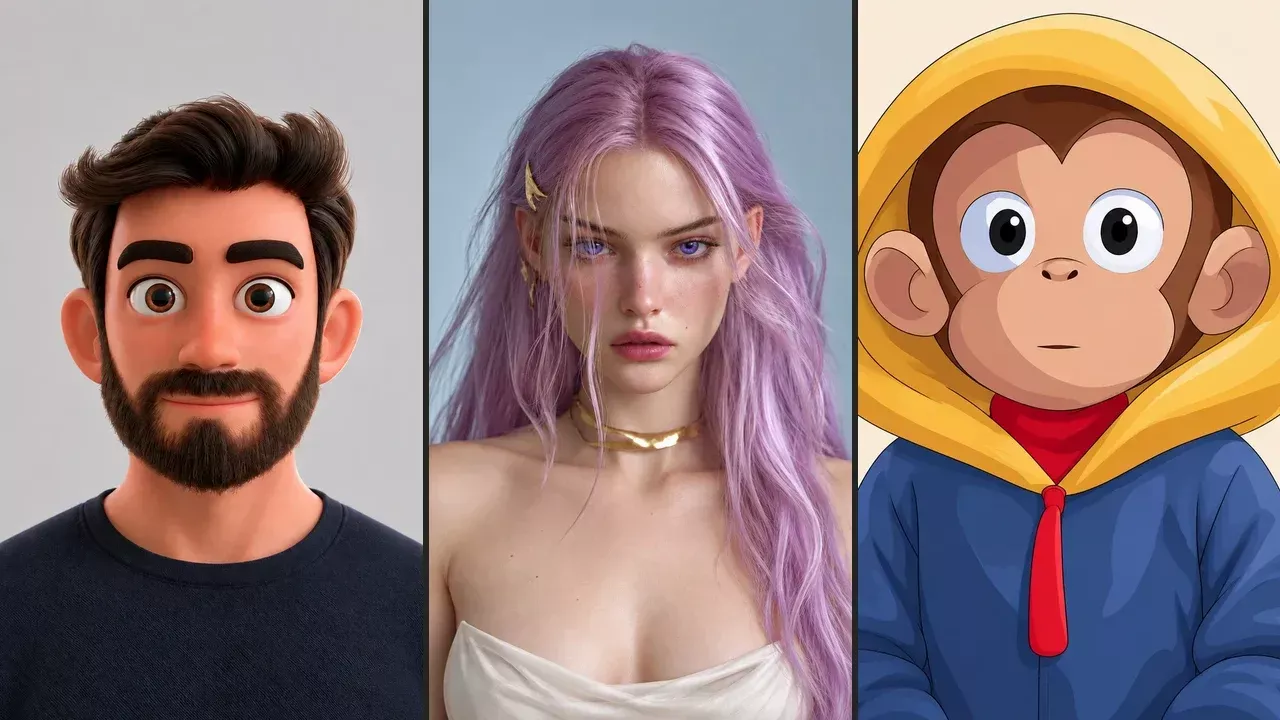
One image of a character can give you two different results, and people often go looking for one and end up with the other. The first is a recorded clip: you supply the words or the audio, and you get a video file back. The second is a live character that listens and answers in the moment, with nothing recorded in advance. If you know which one you want before you open a tool, you won't spend an evening making a good version of the wrong thing.
Why the two get mixed up
Both start the same way. You upload a drawing, a render, a mascot or a portrait, and a face starts to move. The difference shows up after that.
A clip says the same thing every time it plays. That's what you want for a post, a trailer, a greeting or a scene in a longer video, because you decide every word and you can redo it until it's right.
A live character has no fixed lines. Each person who talks to it gets their own conversation, so there's no file to download and nothing to edit afterwards. You're setting up a character that people meet.
The facts about the other tools below come from each company's own website or store listing, checked on 17 November 2026. Confirm them there before you choose, because features and prices change.
Tools that make a recorded clip
Each of these takes your image plus words, audio or a performance, and gives you a video. They differ mostly in what drives the performance and how long the clip can run. They're listed in alphabetical order.
- Dreamina by CapCut (AI Avatar) turns one portrait image into a talking video from a script or uploaded audio, plus a prompt for expressions, gestures and camera movement. You download the result as an MP4, and it can be used with daily free credits. Fits when you want to describe the acting and the camera in words, and start on free credits.
- D-ID (Creative Reality Studio) makes avatar videos from a pre-made avatar, an uploaded image of a face or a generated portrait, combined with text or audio. The result is an MP4. Fits when your character is a face or a portrait and you have the text or the audio ready.
- Hedra (Character-3) is a model for image-to-video lip sync and animation. You give it a start image and audio, and it makes talking and singing videos up to 10 minutes long. Hedra's own examples include human presenters, animals, 3D and storybook characters, 2D illustrated characters and claymation figures. Fits when you already have the audio, the piece is long, or the character sings.
- HeyGen (Avatar IV) turns a single photo into a talking video from a typed script with a voice you choose, or from an audio file. HeyGen says it works for humans, anime characters, animals, sketches and cartoons. There's a free plan with three short watermarked videos a month, and the Creator plan is $29 a month. Fits when you want to type the lines and pick a voice, and try a few short videos before paying.
- Kling AI (Avatar 2.0) combines a character image, speech audio that you upload or generate from a script, and optional performance directions into a talking-avatar video. Kling says it covers scenes up to 5 minutes. A separate Lip Sync feature works on existing videos of realistic, 3D and 2D human characters, and animal characters aren't supported there. Fits when you want a longer scene with directions for the performance, or you have a video of a human character that needs new lip movement.
- Pika (Pikaformance) turns a photo and audio, which can be music, speech or a voice recording, into a performance where the avatar talks or sings. It accepts audio from 1 to 30 seconds, and Pika plans start at $10 a month. Fits when you want a short talking or singing moment for a post.
- Runway (Act-Two) is performance capture. A video of a person performing drives the character, voice included, and the character can be an image or a video. Clips are at least 3 seconds long. Fits when you or an actor want to play the character yourselves and have its face follow.
With all of these, you're the author of every word, and you leave with a file that's yours to post anywhere.
A live character you can talk to
A live character changes what you prepare. There's no script, because nobody knows what the other person will say. You write who the character is instead: their name, their background, how they speak, what they care about. The character then answers from that description, whatever it's asked.
It also needs two things a clip doesn't. It needs a voice of its own, since there's no audio file to follow. And it needs a place to live, such as a web page, where people can come and talk to it.
Several of the companies above also have separate live products: HeyGen has LiveAvatar, D-ID has AI Agents, and Runway has Characters.
Choosing the image
The same kind of image works for both results. Use a picture with a single character in it, facing the viewer.
Check that the tool takes your kind of character before you start. The entries above say what each company names: HeyGen lists anime characters, animals, sketches and cartoons alongside humans, Hedra shows claymation and storybook characters, and Kling's Lip Sync feature leaves out animals. With us, any photo, drawing, painting or 3D render works.
Use only images you have the right to use, which means your own work or work you have permission for. If the image shows a real person, that person must have agreed. That's a rule on Ojin.
How we do it at Ojin
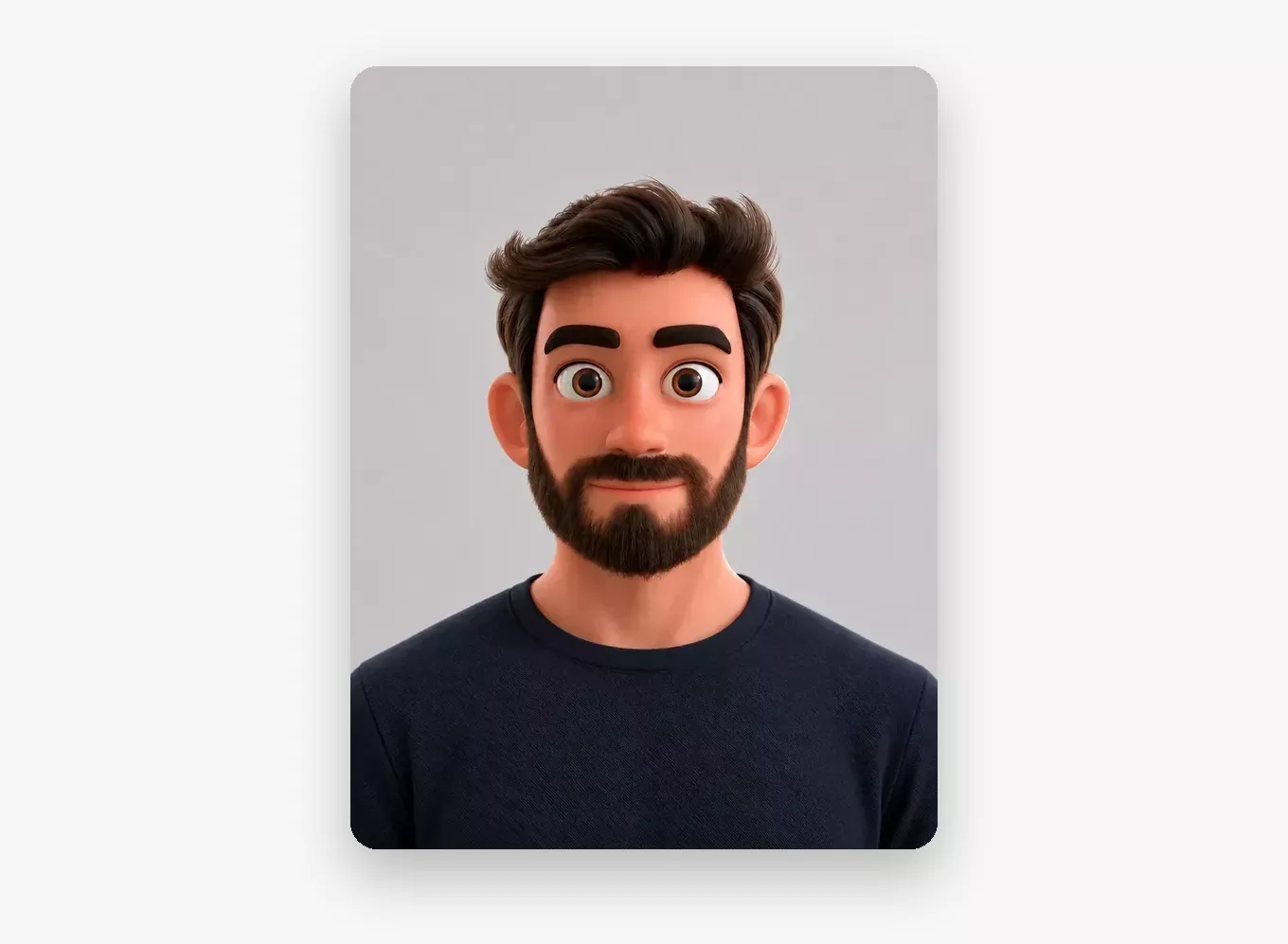
We make live AI characters you can talk to face to face. You speak, and the character answers with a moving face and a voice, in the moment. The face is generated live while the conversation runs.
A character starts from one image, which can be a photo, a drawing, a painting or a 3D render. There's no training and nothing to rig. The face keeps the style of the image, so an anime drawing stays anime.
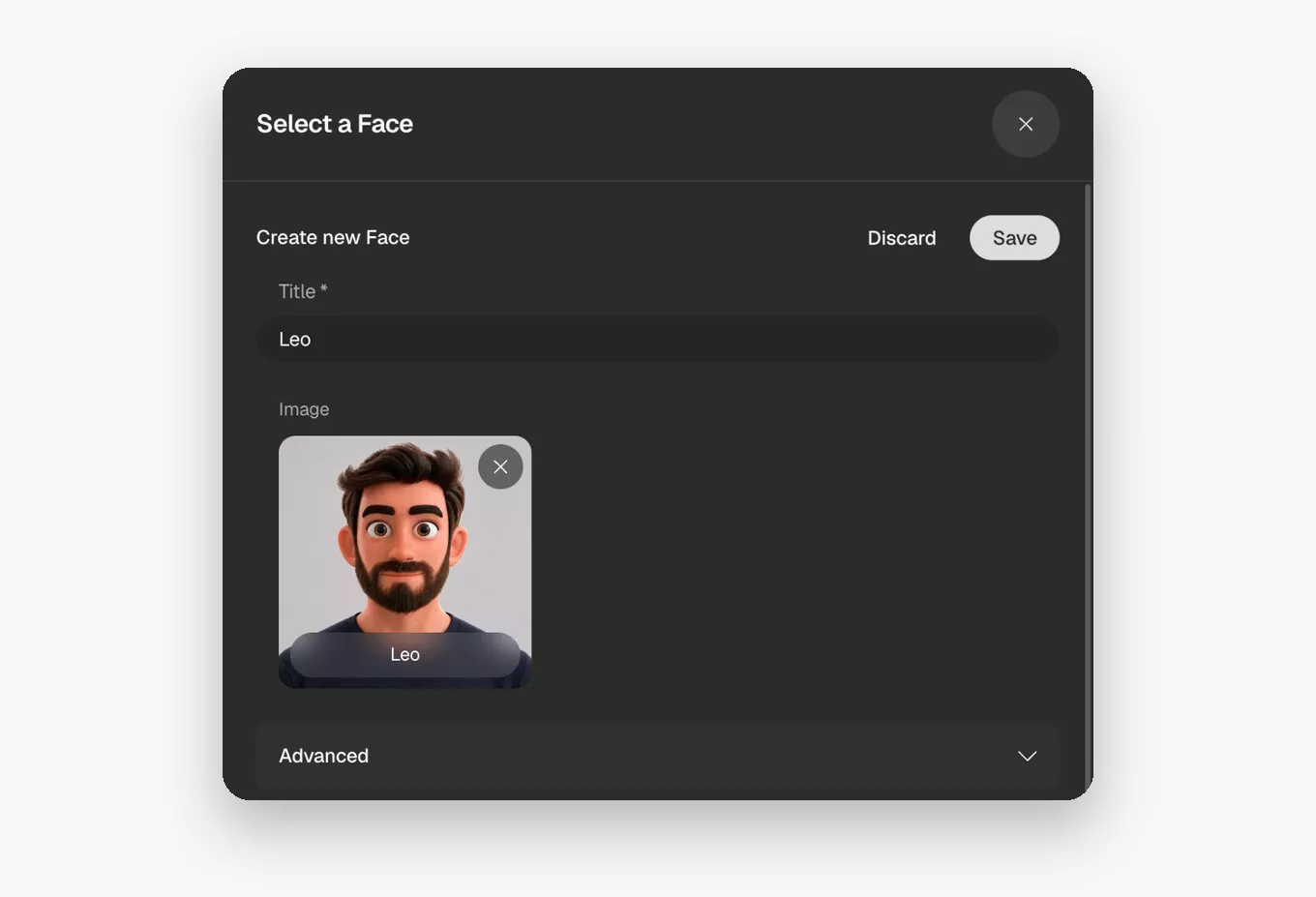
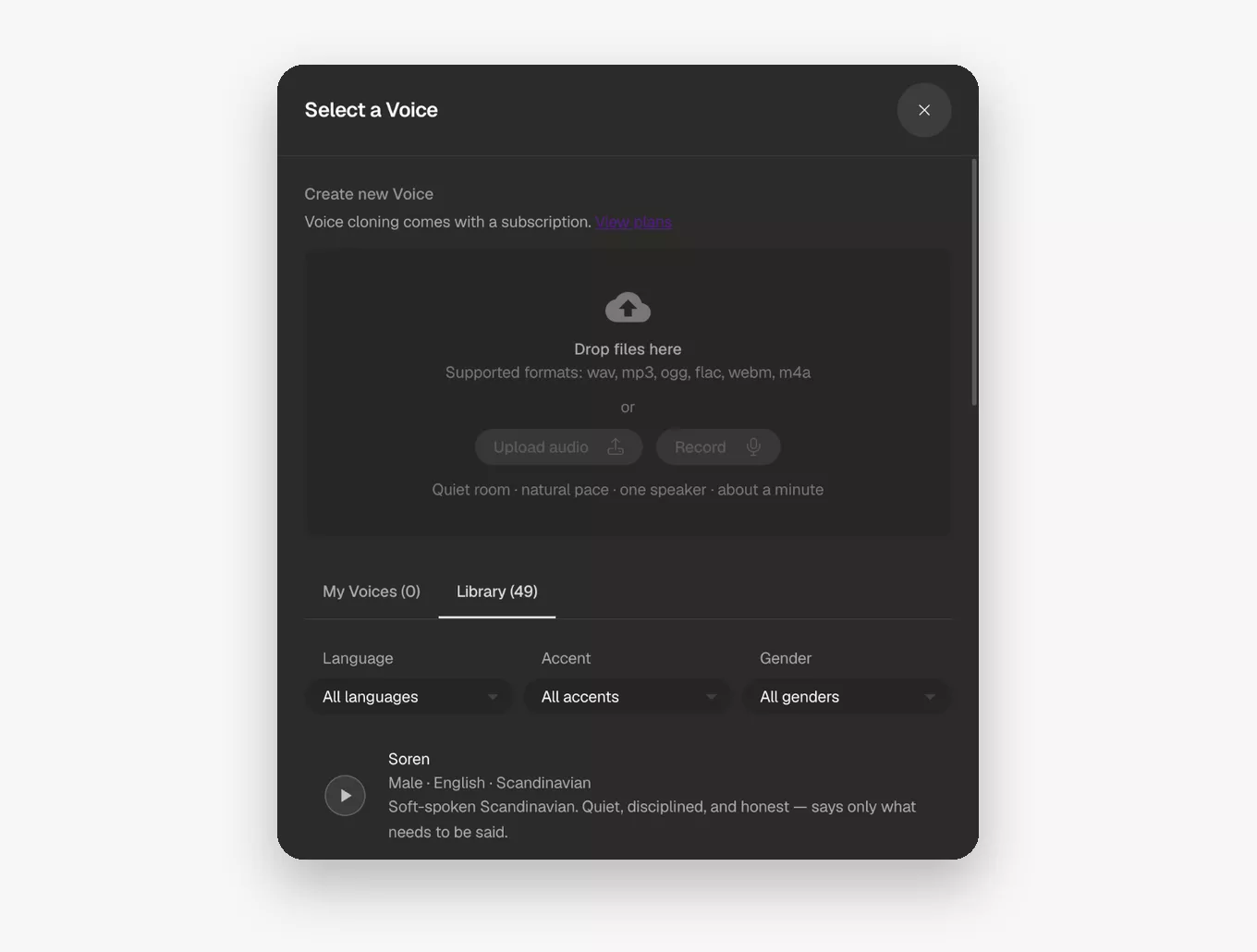
A character card decides who the character is and how they talk. You write it. Then you pick a voice from the library, or you bring your own. Our characters speak 20 languages and reply in the language they're asked in.
You can put the character on any website with one line of code. You paste it where you want the character to appear, and people talk to the character there, in the browser.
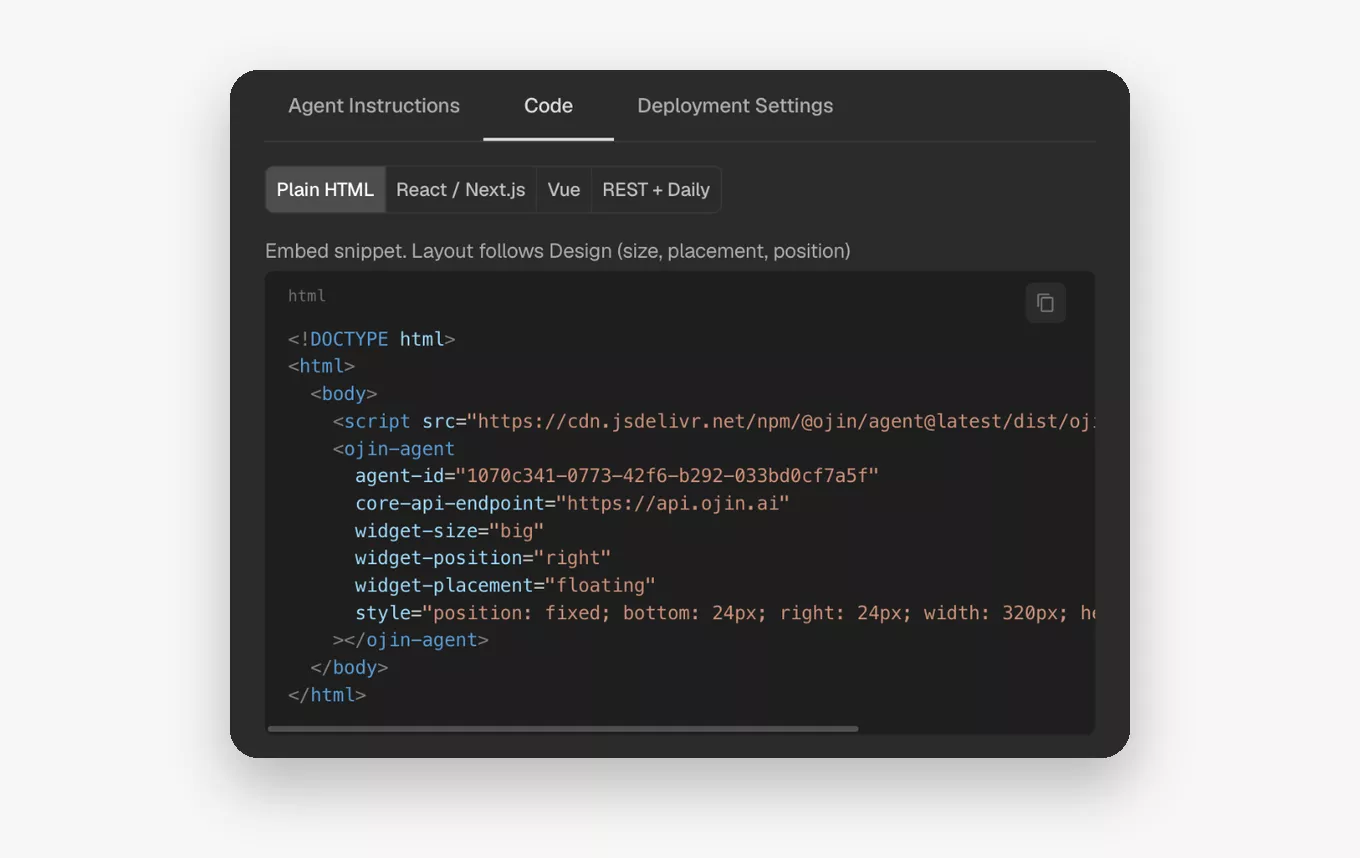
Some ground rules apply to every character. Each face carries an "AI-generated" label, and the character says it's an AI when asked. Ojin is for adults, and its characters depict adults and are never explicit.
The Showcases on ojin.ai show what people make this way: anime characters, companions, historical figures and game characters. You can call each of them in the browser.
Pricing is usage-based, from $0.05 a minute, with no seats and no minimums. Plans start at $8 a month on Creator, billed annually. It fits when you want people to talk with your character on a page of your own.
Start with the picture you have
The drawing, render, mascot or portrait you already have can speak. It can say the lines you wrote, in a clip you post today, or it can answer people who come to talk to it.
Before you open anything, decide whether you need a file to post or a character to talk to, because that decides the tool. For a file, pick from the list by what drives the performance and how long the clip runs. For a character, you write who they are, give them a voice and put them on a page.
Then start today. Open one of the tools above and upload your image. If you want a live character, call one from our Showcases in the browser at ojin.ai first, then make your own from the same image.